
Do you run more than one CMP, for example one for your website and one for your app, or a test CMP and a live one? Use Synchronize CMP to copy settings from one CMP to another, so you don’t have to set up the same vendors and cookies twice.
Before you start: source and target
Every sync involves two CMPs:
- Source CMP: the CMP you copy settings from. Its settings stay as they are.
- Target CMP: the CMP you copy settings to. Its selected settings get overwritten with the settings from the source CMP.
Heads up
Syncing overwrites the selected settings on the target CMP. You can’t undo a sync.
How to synchronize two CMPs
Go to CMPs to open the list of CMPs in your account.
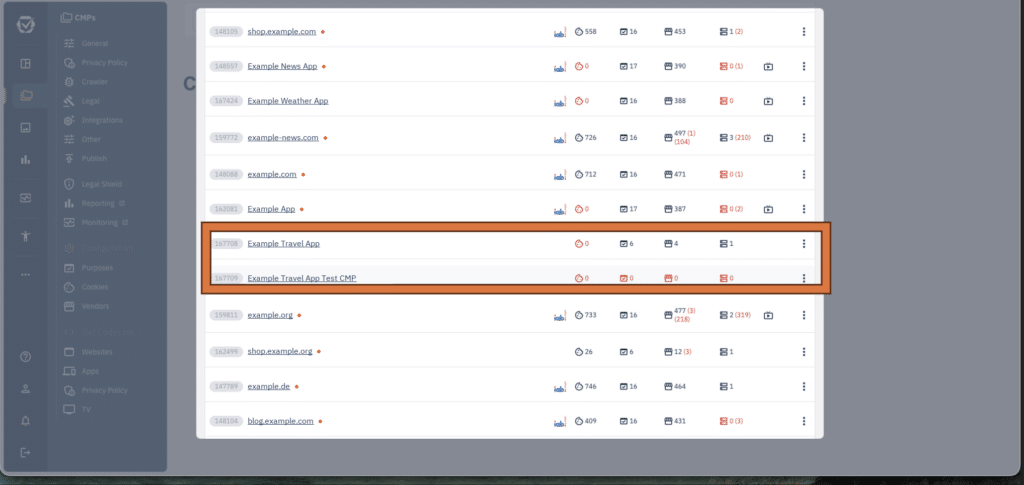
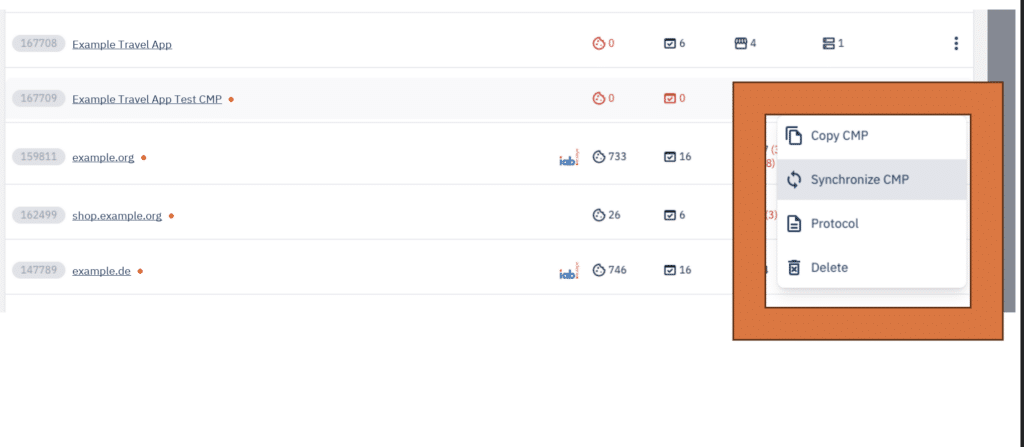
Find your source CMP, the one with the settings you want to copy. Click the three dots on the right of its row and select Synchronize CMP.
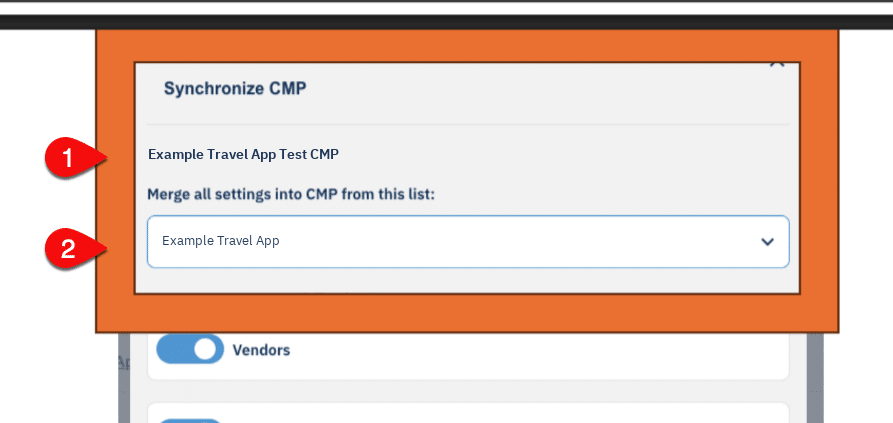
Check the CMP name at the top of the Synchronize CMP window. This is your source CMP (1).
Under Merge all settings into CMP from this list, select your target CMP (2). This is the CMP whose settings get overwritten.
Remember
#1 is the source CMP you copy settings from. #2 is the target CMP, and its settings get overwritten.
Choose which settings to sync:
- Vendors
- Purposes
- Cookies
- Domains
- CMP Settings
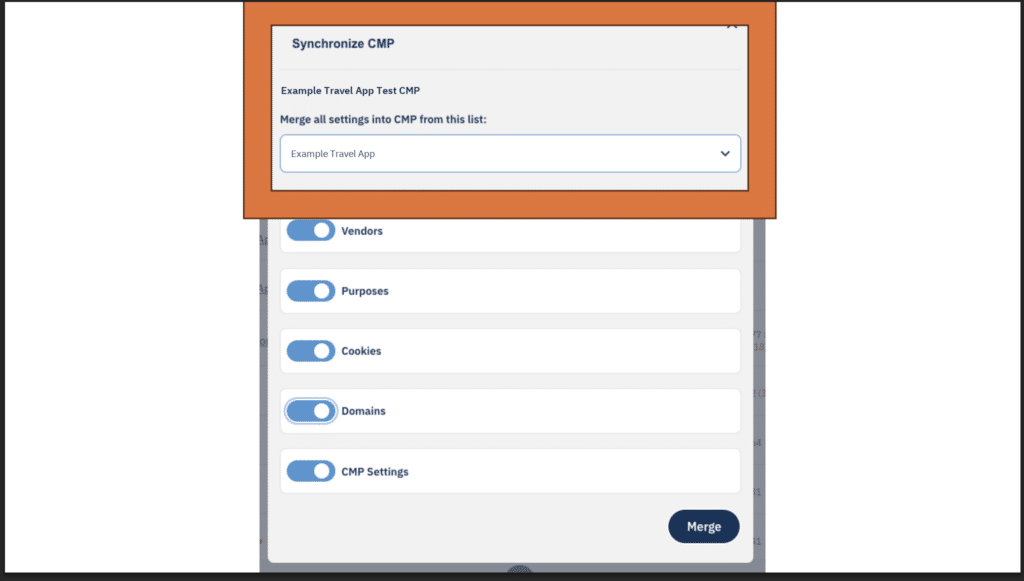
Check the source and target one last time, then click Merge.